This guide provides comprehensive instructions on how to gracefully exit your Arduino programs interacting with an LCD screen. We'll cover various scenarios and best practices for ensuring clean termination of your LCD processes, avoiding potential issues and maximizing your project's performance. Learn how to manage resources and ensure your Arduino LCD exit is handled effectively.
While seemingly simple, improperly exiting an Arduino program that interacts with an LCD can lead to unexpected behavior. This includes residual data on the screen, unresponsive displays, or even program crashes. A clean Arduino LCD exit involves properly closing connections, releasing resources, and clearing the LCD screen before ending your program. This ensures the stability and reliability of your project. Different LCD libraries might require specific termination methods.
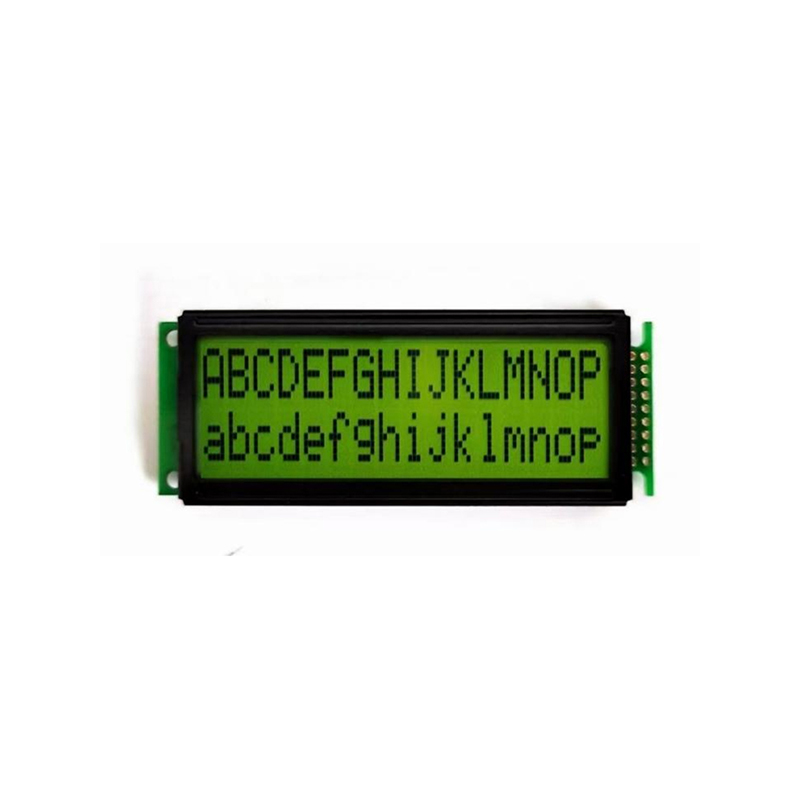
The most common library for interfacing with LCDs on Arduino is the `LiquidCrystal` library. This library doesn't have a built-in exit function. The best approach is to simply stop sending commands to the LCD after your program's core task is complete. You may want to clear the LCD screen as a final step.
void setup() { // ... LCD initialization ...}void loop() { // ... Your LCD display code ... // Clean Exit lcd.clear(); //Clear the LCD screen. delay(100); //Optional small delay. //No further interaction with lcd. The program will continue to loop but won't affect the LCD.}Sometimes you might need to handle an Arduino LCD exit triggered by external events like button presses. In such cases, you can use a button to set a flag variable that indicates the program should terminate the LCD interaction.
boolean exitFlag = false;void loop() { // ... check for button press ... if (buttonPressed) { exitFlag = true; } if (!exitFlag) { // ... Your LCD display code ... } else { lcd.clear(); //Other cleanup tasks if needed. }}If you're using other LCD libraries (like NewLiquidCrystal or Adafruit_RGBLCD), refer to their respective documentation for proper shutdown procedures. Some libraries may offer specific functions for closing the LCD connection or clearing the display. Always consult the library's documentation for specific instructions on how to cleanly exit.
If you're experiencing difficulties with your Arduino LCD exit, consider the following:
Effectively managing an Arduino LCD exit is crucial for reliable and robust Arduino projects. By implementing the methods outlined above and understanding potential issues, you can ensure your programs interact smoothly with your LCD display and avoid unexpected behavior. Remember to always consult the specific documentation for your LCD library for best practices. For high-quality LCD displays for your Arduino projects, consider exploring the offerings at Dalian Eastern Display Co., Ltd.. They provide a wide variety of options to suit your needs.